i1rm Login
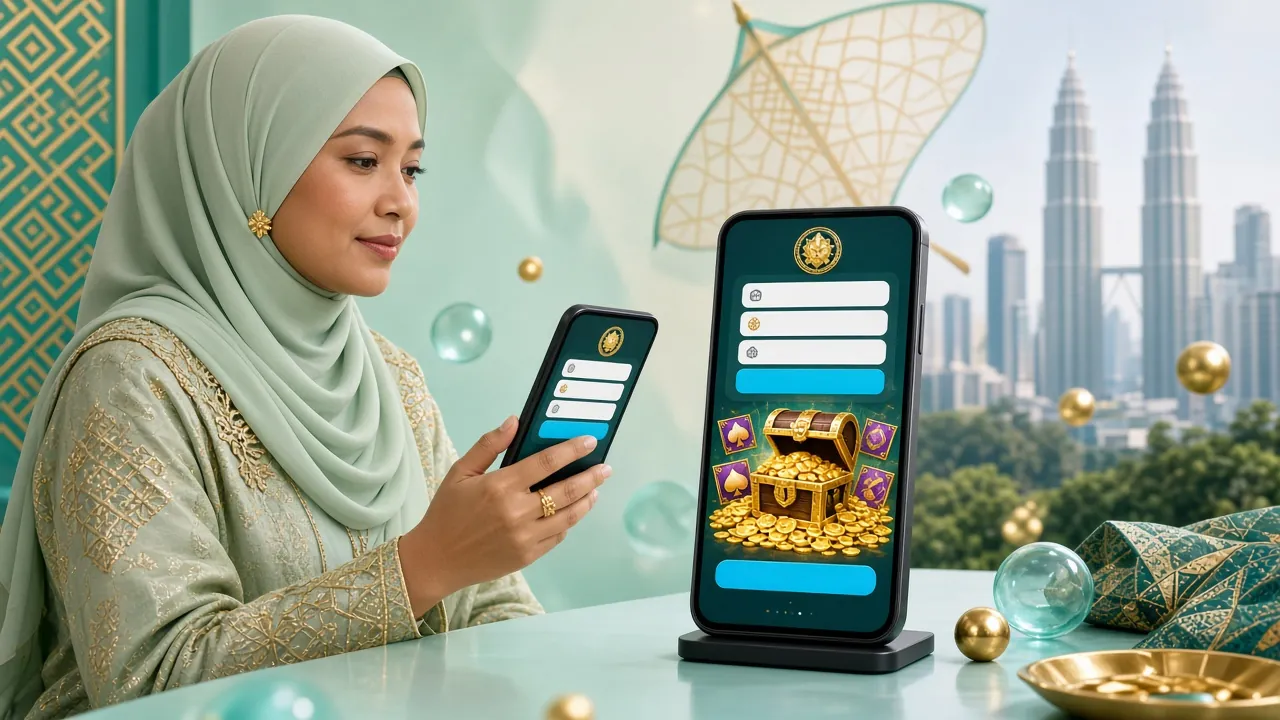
Enter your registered mobile number and password to access your i1rm account. All sessions are secured with SSL encryption.
Fix Common i1rm Login Problems
Most login issues can be resolved in under two minutes. Use this table to identify what's going wrong and fix it fast.
| Problem | Likely Cause | How to Fix It |
|---|---|---|
| "Invalid password" error after entering credentials | Password entered incorrectly — most often a capitalisation mismatch or an extra space typed before the first character. Mobile keyboards sometimes auto-capitalise the first letter. | Tap the eye icon to reveal your password and check each character carefully. If you are still stuck, use the "Forgot password?" link on the i1rm login form to reset it immediately. |
| OTP or verification SMS never arrives | The number registered may differ from the SIM currently in your phone, or your mobile carrier is experiencing a brief delay. Some prepaid lines drop short-code messages by default. | Wait up to 90 seconds, then request the code again. Check that your registered number is correct. If the SMS still does not arrive, contact i1rm 24/7 Live Chat with your mobile number and account details. |
| Account locked after multiple failed attempts | i1rm automatically locks an account after several consecutive wrong passwords as a security measure to protect your funds. | Wait 15 minutes for the temporary lock to lift, then try again with the correct password. If the lock persists beyond 30 minutes, reach out to Live Chat — verification will unlock it without data loss. |
| Page keeps loading or times out on login | A slow or unstable internet connection, an outdated browser cache, or a network DNS issue is preventing the login request from completing. | Switch from WiFi to your mobile data or vice versa. Clear your browser cache (Settings → Privacy → Clear Browsing Data). Alternatively, download the i1rm App which uses a lighter connection protocol. |
| "Account not found" message | The mobile number typed does not match any registered account. This can happen if you registered with a different number or if there is a typo in the prefix (e.g. 011 vs 012). | Double-check the full number including the country prefix. If you have never created an account, head to i1rm Register to sign up for free — it takes under three minutes. |
| Login works but balance shows zero or missing | You may have logged into a different account, or a recent deposit is still being processed. Deposits via FPX or DuitNow usually reflect within 1 minute. | Log out and log back in to refresh the session. If the deposit was made within the last few minutes, wait for the 1-minute processing window to complete. For amounts that remain missing after 10 minutes, contact Live Chat with your transaction reference. |
Log In to i1rm in Four Steps
Whether you are on a desktop browser or the i1rm mobile app, the login process is the same. Follow these steps and you will be in your account within seconds.
-
1
Open the i1rm Login Page
Visit i1rm.cam/i1rm-login/ directly in your browser or tap the Login button at the top of any page. If you are using the i1rm App, open the app and the login screen appears automatically. Make sure you are on the official i1rm URL — check the address bar before entering any details to avoid phishing sites.
-
2
Enter Your Registered Mobile Number
Type your full Malaysian mobile number in the first field — include the leading zero (e.g. 011-12345678). The field uses
inputmode="numeric"so your phone will show a number keypad automatically. This is the same number you used when you completed the i1rm registration. -
3
Enter Your Password and Submit
Type your password in the second field. Tap the eye icon on the right to reveal the characters if you need to verify what you have typed. Tick "Remember me" if you are on a personal device — this keeps you logged in for 7 days. When ready, tap Log In to i1rm.
-
4
You Are In — Start Playing
After a successful login you are taken straight to your i1rm account lobby. Your wallet balance, active bonuses and recent transactions are visible on the dashboard. From here you can access over 1,400 games, top up your balance using Touch 'n Go eWallet or DuitNow, and manage your profile settings.
Three Ways to Access Your i1rm Account
i1rm supports three login methods. Each suits a different device and situation — pick the one that fits how you play.
| Login Method | Device | Credential Used | Biometric Option | Session Length | Best For |
|---|---|---|---|---|---|
| Mobile Number + Password | Desktop browser, mobile browser | Registered phone number & password | No | Up to 7 days (with "Remember me") | Desktop players, first-time login |
| i1rm App Login | Android phone or tablet (v8.0+) | Mobile number & password on first launch, then biometric | Yes (fingerprint / Face ID) | Persistent until manually logged out | Daily mobile players, fastest access |
| Username + Password | Desktop browser, mobile browser | Username set during registration + password | No | Up to 7 days (with "Remember me") | Players who prefer not to show phone number |
App login requires the i1rm APK installed from i1rm App page. Version 2.1.1, free to download, supports Android 8.0 and above.
Keep Your i1rm Account Secure
Your account holds real money. These five practices take under five minutes to set up and significantly reduce your risk of unauthorised access.
Use a Strong, Unique Password
Your i1rm password should be at least 10 characters long and mix uppercase letters, numbers and a symbol (e.g. Mango#8821). Never reuse a password from another site — if that site is ever breached, attackers will try the same password on your i1rm account. Update your password every 90 days.
Enable SMS Verification
i1rm sends a one-time code to your registered mobile number for sensitive actions such as password changes and large withdrawals. Keep your registered number up to date in your profile settings. If you change your SIM, update your number via Live Chat before attempting to withdraw.
Avoid Public Wi-Fi for Login
Open hotspots at mamak stalls, shopping malls or airports are unencrypted and can expose your session. If you need to log in while out, switch to your mobile data connection (Maxis, Celcom, Digi or U Mobile). The i1rm App adds an extra layer of TLS encryption on top of your connection.
Log Out on Shared Devices
If you log in on a friend's phone or a cyber café computer, always tap the logout button when you are done — do not just close the tab. Clear browser history and saved passwords afterwards. The "Remember me" feature should only be ticked on devices that belong to you personally.
Watch Out for Fake i1rm Login Pages
Scammers sometimes build pages that look like i1rm but have a different URL (e.g. with extra letters or a different domain). Always confirm the address bar shows i1rm.cam before entering your password. i1rm will never ask for your password via WhatsApp, Telegram or SMS. If you receive such a message, report it to our 24/7 Live Chat immediately.
Forgot Your i1rm Password?
Reset it in three steps using your registered mobile number. The whole process takes about two minutes.
-
1
Tap "Forgot Password?" on the Login Form
On the i1rm login page, tap the "Forgot password?" link located to the right of the Password label. This opens the account recovery screen. Enter the mobile number you used when you registered — not a new number. i1rm sends a 6-digit OTP to that number via SMS within 60 seconds.
-
2
Enter the OTP and Verify Your Identity
Type the 6-digit code from the SMS into the verification field. Codes expire after 10 minutes — if yours expires, tap "Resend" to get a new one. If the SMS does not arrive after two attempts, contact 24/7 Live Chat with your registered mobile number for manual identity verification, which takes up to 12 hours for KYC review.
-
3
Set a New Password and Log In
After verification, type a new password twice to confirm. It must be at least 8 characters. Tap "Save Password" and you will be redirected back to the i1rm login form automatically. Log in with your mobile number and the new password. Consider saving it in a password manager to avoid going through this process again.
i1rm Login — Frequently Asked Questions
These are the questions our support team receives most often about logging in. If your question is not covered here, our 24/7 Live Chat team can help immediately.
Q1 I entered the right password but still get an error. What is happening?
The most frequent cause is a hidden space before or after the password — this happens when you copy-paste from a notes app. Tap the eye icon to reveal your input and check for spaces. Mobile keyboards may also auto-correct your password text. If the problem continues, reset your password using the "Forgot password?" link on the i1rm login page. The reset takes about two minutes and your account balance and history remain untouched.
Q2 Can I log in to i1rm using the same account on two devices at the same time?
Yes. You can be logged in on a desktop browser and the i1rm App at the same time using the same account credentials. All sessions show the same live balance, so a bet placed on one device is immediately reflected on the other. For security, i1rm will notify you via SMS if a login is detected from an unrecognised device or location. If you did not initiate that login, change your password immediately and contact Live Chat.
Q3 How long does the i1rm login session last before I am logged out automatically?
Without "Remember me" ticked, your browser session expires after 30 minutes of inactivity — standard for security. With "Remember me" enabled on a personal device, the session persists for 7 days. The i1rm App keeps you logged in indefinitely until you tap Logout manually. After a session expires you will need to enter your credentials again, but your account data, balance and bonus history are never affected by a session timeout.
Q4 I cannot receive the OTP SMS for verification. What should I do?
First, check that the number on your registered i1rm account matches the SIM currently in your phone — this is the most common mismatch. Wait at least 90 seconds before requesting a new code, as network delays can hold up delivery. Some prepaid plans filter short-code messages; contacting your carrier to whitelist SMS from short codes can help. If none of these steps work, reach i1rm 24/7 Live Chat — the team can verify your identity using your account details and issue a manual reset within a few minutes.
Q5 Is it safe to save my i1rm login details in my mobile browser or password manager?
Yes, provided the device is yours and is protected by a screen lock (PIN, fingerprint or Face ID). Reputable password managers such as those built into Chrome, Samsung Internet or dedicated apps use AES-256 encryption to store credentials. This is safer than writing passwords down or reusing the same password across sites. Avoid using the browser's save-password feature on a shared or work device, as anyone who unlocks that browser profile could access your saved data.
Q6 My account was suspended after login. How do I get it reinstated?
Accounts are suspended for a few reasons: multiple failed login attempts triggering fraud protection, an incomplete KYC (identity verification) requirement, or a voluntary self-exclusion that was set previously. To identify the exact reason, contact i1rm 24/7 Live Chat with your registered mobile number. For KYC-related suspensions, submitting a National ID Card (NID), Passport or Driving Licence is typically sufficient; the review is completed within 12 hours. Suspension does not mean your balance is forfeited.